Attribute Browser
A hierarchical tree view of every attribute on the active Inventor document, organized by owner object.
The Attribute Browser is the main panel of the add-in. It displays a live tree of all attributes attached to the currently active Inventor document, grouped by owner object and then by attribute set.
Open the panel from the ExtrabbitCode.Attributes ribbon tab by clicking the Attribute Dialog button. The tree populates automatically when a document is active (depends on settings).
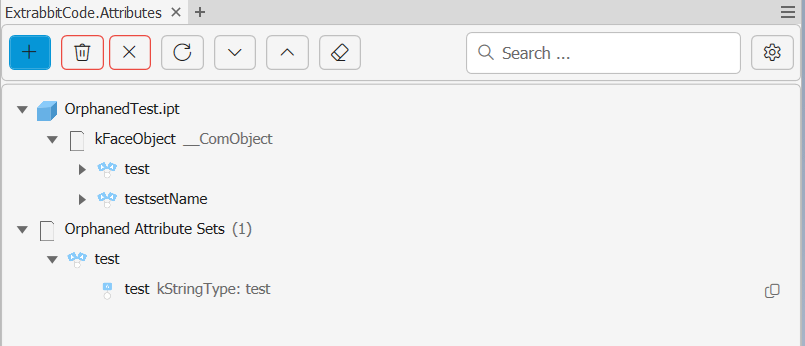
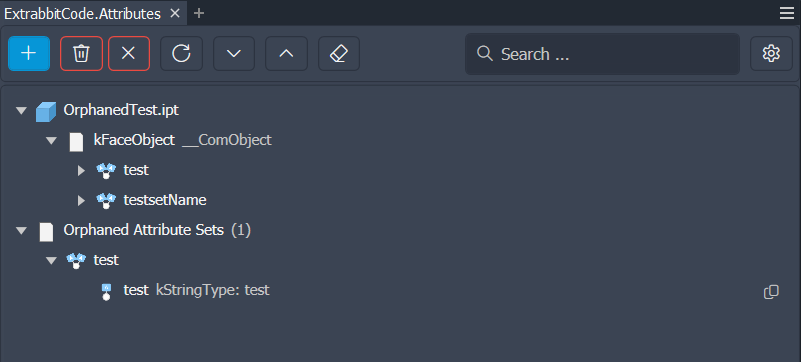
Tree structure
The tree is organized in four levels:
| Icon | Level | What it represents |
|---|---|---|
    | Document node | The root — the active Inventor file (part, assembly, drawing, or presentation) |
 | Owner node | An Inventor object that owns one or more attribute sets (e.g. a face, edge, body and many more) |
 | Attribute set node | A named group of attributes on one owner object |
 | Attribute node | A single key/value pair within an attribute set |
Toolbar buttons
| Button | Action |
|---|---|
| Add Attribute | Opens the Add Attribute dialog |
| Delete Selected (trash) | Removes all attributes from the objects currently selected in the Inventor viewport |
| Delete All (trash + ✕) | Removes every attribute from the entire active document |
| Refresh | Manually reloads the tree from the active document |
| Expand All | Opens every node so all attributes are visible |
| Collapse All | Closes all nodes back to just the document root |
| Purge Orphans | Removes all orphaned attribute sets from the document |
| Settings | Opens the Settings dialog |
On documents with a large number of attributes, Expand All can take a noticeable amount of time. For large assemblies, consider using the search filter to find what you need instead.
Context menu
Right-clicking any node in the tree opens a context menu. The available items depend on the node type:
| Action | Available on | Description |
|---|---|---|
| Select in Window | All nodes | Selects the corresponding Inventor object in the Inventor viewport (this is a best effort. There are things that cant be selected and still have a attribute. |
| Edit | Attribute nodes only | Opens the edit dialog pre-filled with the current value |
| Copy Formatted Value | JSON/XML attribute nodes only | Copies the value indented, see JSON & XML Values |
| Delete | All nodes | Deletes the attribute or the entire attribute set. On the orphaned attributes owner node this triggers a pruge orphaned attributes |
Refreshing the tree
The tree refreshes automatically when you switch to a different open document (if Auto-Refresh is enabled). You can also trigger a manual refresh at any time using the refresh button in the toolbar.